

Description
Download Cigati Mail Migration Tool – Free Email Migration Software for Windows, Secure & Easy to Use
Cigati Mail Migration Tool is a powerful, free software designed for Windows users who need to migrate emails from one email client to another. Whether you're switching from Outlook to Gmail, moving from Thunderbird to Office 365, or transferring data between different email accounts, this tool simplifies the entire process. With its intuitive interface and reliable performance, Cigati Mail Migration Tool ensures a secure and efficient email transfer without data loss. It supports multiple formats like PST, EML, MSG, and MBOX, making it compatible with a wide range of email platforms. Perfect for individuals and small businesses looking for a no-cost solution to manage their email migration tasks seamlessly.
Why Choose Cigati Mail Migration Tool for Your Email Transfer Needs?
When it comes to transferring emails between different platforms, many users face challenges such as data corruption, missing attachments, or complex manual processes. Cigati Mail Migration Tool eliminates these issues by offering a streamlined, automated migration experience. The software is specifically built for Windows users and is completely free to download and use, making it an ideal choice for those who want a no-cost yet professional-grade solution. One of the standout features is its support for multiple email formats, including PST (used by Microsoft Outlook), EML (common in Thunderbird), MSG (Outlook individual emails), and MBOX (used by Apple Mail and some Linux clients). This versatility ensures that no matter what email client you're using, Cigati can handle the migration with ease.
Another major advantage is the tool’s user-friendly interface. Even users with minimal technical knowledge can navigate the software effortlessly. The step-by-step wizard guides you through the entire process—from selecting the source mailbox to choosing the destination account. You can preview emails before migration, ensuring that all critical data is transferred correctly. The software also maintains folder structures, preserving your organizational setup. This is especially valuable for professionals who rely on well-structured email archives. Moreover, Cigati Mail Migration Tool performs migrations in the background, allowing you to continue working without interruptions. It’s a secure, lightweight, and efficient tool that delivers consistent results across different migration scenarios.
Security is a top priority, and Cigati ensures that your data remains protected throughout the transfer. The tool doesn’t store or transmit your email data online—everything happens locally on your machine. This local processing is a major plus for users concerned about privacy and data breaches. Whether you're migrating personal emails or sensitive business correspondence, you can trust Cigati to handle your information with care. With regular updates and a clean, clutter-free design, this software continues to evolve while maintaining its core promise: simplicity, reliability, and zero cost.
Key Features and Capabilities of Cigati Mail Migration Tool
Cigati Mail Migration Tool comes packed with essential features that make email migration a breeze. One of the most valuable features is its ability to migrate emails between different platforms without requiring advanced technical skills. The software supports seamless transfer from popular email clients such as Microsoft Outlook, Mozilla Thunderbird, Apple Mail, and even web-based services like Gmail and Yahoo, provided you have access to the local mailbox files. This broad compatibility ensures that users from various ecosystems can benefit from the tool.
Another standout feature is the batch migration capability. Instead of transferring emails one by one, you can select multiple folders or entire mailboxes for simultaneous migration. This saves significant time, especially when dealing with large volumes of data. The tool also preserves metadata such as timestamps, sender information, and read/unread status, ensuring that your email history remains intact. Attachments are transferred without corruption, and embedded images are preserved in their original quality.
Preview functionality is another highlight. Before initiating the migration, you can browse through your source emails and verify that all content is present and correct. This helps prevent errors and gives users peace of mind. The tool also allows you to filter emails by date, sender, or subject, making it easier to selectively migrate specific messages. For advanced users, there’s an option to customize the migration path and map folders between source and destination. This level of control ensures flexibility for complex migration scenarios. Additionally, the software logs all migration activities, which is helpful for auditing or troubleshooting if needed.
With its lightweight design and minimal system requirements, Cigati Mail Migration Tool runs smoothly on older Windows systems without slowing down your device. It doesn’t require installation of additional software or plugins, making it truly portable. The entire process is completed in minutes, even for large mailboxes. Whether you're upgrading your computer, switching email providers, or consolidating multiple accounts, this tool handles it all with precision and speed.
How to Install and Use Cigati Mail Migration Tool on Windows
Installing Cigati Mail Migration Tool is a straightforward process that takes less than five minutes. Begin by visiting the official website and downloading the latest version of the software. The installer is a small, self-contained file that doesn’t require administrator privileges, making it safe and easy to run on most Windows systems. Once downloaded, simply double-click the executable file to launch the setup wizard. Follow the on-screen prompts to choose your installation directory—though the default location is recommended for optimal performance.
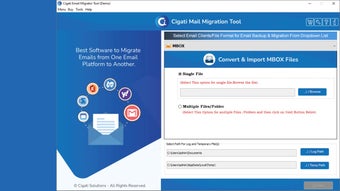
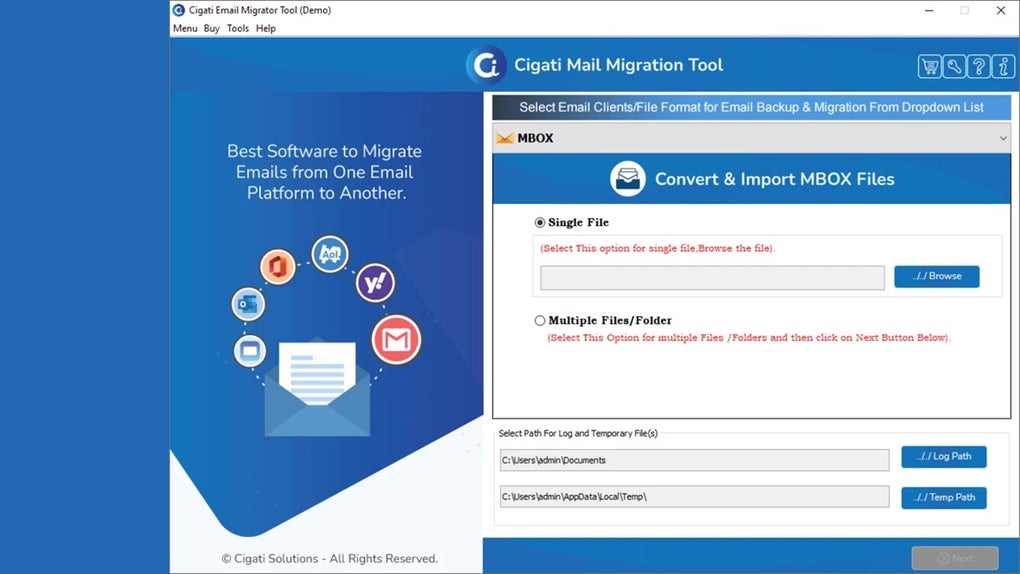
After installation, launch the tool from your Start menu or desktop shortcut. The main interface is clean and intuitive, with clearly labeled buttons and a step-by-step migration wizard. To begin, click “Add Source” and browse to the location of your email file (PST, EML, MSG, or MBOX). The tool will automatically detect the file type and load its contents. Next, click “Add Destination” and select the target email client or account. If you're migrating to Outlook, the tool will connect to your local profile. For cloud-based services like Gmail, you’ll need to provide your credentials, but rest assured—your login details are never stored by the software.
Once both source and destination are configured, you can preview the emails and select specific folders or messages to migrate. Use the filter options to narrow down your selection. Then, click “Start Migration” and let the tool do the rest. The progress bar shows real-time updates, and you’ll receive a confirmation message once the transfer is complete. You can also schedule future migrations or export migration logs for record-keeping. The entire process is fully automated, requiring minimal user input after the initial setup. For users who prefer a command-line interface, Cigati also offers a batch mode for advanced automation, though this is optional.
Compatibility and System Requirements
Cigati Mail Migration Tool is exclusively designed for Windows operating systems. It is compatible with Windows 7, 8, 8.1, and Windows 10 (both 32-bit and 64-bit versions). It also runs smoothly on Windows 11, ensuring that users on modern systems can take full advantage of the tool. The software has minimal system requirements—just 512 MB of RAM and 50 MB of free disk space are needed for installation, making it ideal for older or low-spec machines.
While the tool is currently only available for Windows, Cigati Solutions has hinted at future support for Mac and Linux platforms. However, for now, Windows users are the primary audience. The software does not require any additional libraries or .NET Framework installations, which simplifies deployment across corporate or personal environments. It works independently and doesn’t interfere with other email clients installed on your system.
For users who need to migrate emails from web-based services, the tool relies on local mailbox files. This means you’ll need to export your emails from your current provider first—typically via IMAP or by exporting to PST/EML format. Once the files are saved locally, Cigati can process them. This approach ensures data security and avoids dependency on third-party APIs.
Pros and Cons of Cigati Mail Migration Tool
- Pros:
- Completely free to download and use
- Supports multiple email formats: PST, EML, MSG, MBOX
- Intuitive, user-friendly interface
- Preserves folder structure and metadata
- Secure local processing—no data uploaded online
- Batch migration for faster transfers
- Preview emails before migration
- Lightweight and fast performance
- Cons:
- Only available for Windows (no Mac or Linux version)
- Requires manual export of emails from web services
- Limited customization for advanced users
- No built-in support for direct cloud-to-cloud migration
- Minimal documentation or video tutorials
Frequently Asked Questions (FAQ)
Is Cigati Mail Migration Tool free to use?
Yes, Cigati Mail Migration Tool is completely free to download and use. There are no hidden costs, subscriptions, or premium features. It’s a no-cost solution designed to help users migrate emails without financial burden.
Can I migrate emails from Gmail to Outlook using this tool?
Yes, you can migrate emails from Gmail to Outlook, but you’ll first need to export your Gmail emails to a local file (like PST or EML) using tools such as Google Takeout or an IMAP client. Once exported, Cigati can transfer the data to Outlook.
Does the tool support Mac or Linux systems?
Currently, Cigati Mail Migration Tool is only available for Windows. There is no official version for Mac or Linux, though the developers have mentioned potential future support.
Is my email data safe during migration?
Yes, your data remains on your local machine throughout the process. Cigati does not upload or store your emails online, ensuring maximum privacy and security.
How long does a typical migration take?
Migration time depends on the size of your mailbox. Small to medium mailboxes (under 1 GB) typically take 5–10 minutes. Larger archives may take 20–30 minutes or more, but the process runs in the background without affecting your workflow.
Final Verdict: A Reliable Free Tool for Windows Email Migration
Cigati Mail Migration Tool stands out as one of the most accessible and secure free email migration solutions available for Windows users. Its combination of ease of use, broad format support, and local processing makes it a top choice for individuals and small teams looking to switch email clients or consolidate accounts. While it lacks cross-platform support and direct cloud integration, its core functionality is rock-solid and delivers excellent value for zero cost.
If you're ready to migrate your emails safely and efficiently, download Cigati Mail Migration Tool today and take control of your digital inbox with confidence. It’s a smart, secure, and free tool that does exactly what it promises—without any strings attached.
Download Cigati Mail Migration Tool now and simplify your email transfer journey with a trusted, free software solution.
Guides & Tutorials for Cigati Mail Migration Tool
How to install Cigati Mail Migration Tool
- Click the Preview / Download button above.
- Once redirected, accept the terms and click Install.
- Wait for the Cigati Mail Migration Tool download to finish on your device.
How to use Cigati Mail Migration Tool
This software is primarily used for its core features described above. Open the app after installation to explore its capabilities.
User Reviews for Cigati Mail Migration Tool 0
No reviews found





